From Traditional DBA -> Cloud DBA –> Vibe DBA(AI DBA): Next Evolution Begins, for years, the role of the Database Administrator (DBA) has been evolving. We saw Traditional DBAs, who focused primarily on physical environments and manual database operations, transition into Cloud DBAs responsible for automation, scalability, and distributed platforms. Now, we are entering the next era — the era of VIBE DBAs or AI DBAs.
Recently, I was inspired by a session from Oracle AI World: “Build an Agentic AI Application with MCP on Oracle AI” by Anup Ojah and Praveen Patil from Oracle. Before this session, I honestly did not know what an MCP (Model Context Protocol) server was, or how it could transform Cloud DBAs into AI-Driven DBAs. The session explained not only the technical possibilities but also the enterprise-level guardrails and a structured 7-step approach to securely enable AI inside database workflows.
After understanding MCP and Oracle’s AI direction, I strongly believe:
AI DBAs (Vibe DBAs) will evolve and replace traditional Cloud DBAs just like Cloud DBAs replaced on-prem DBAs.
How Is This Change Happening?
Enterprises are now defining their own internal LLMs (Large Language Models). Once these models mature, around 90% of repetitive Cloud DBA tasks can be automated, including: Monitoring ,Alerting ,Performance reporting,Routine SQL checks ,System health validation. However, automation alone is not enough. This is where the Vibe DBA comes in:
Vibe DBA = DBA + AI Agent Orchestration : The job will shift from doing everything manually to:
✅ Designing AI Agents
✅ Defining prompts with constraints
✅ Setting triggers (when to act)
✅ Ensuring security boundaries
My First MCP Server Experience Using Oracle Database 26ai
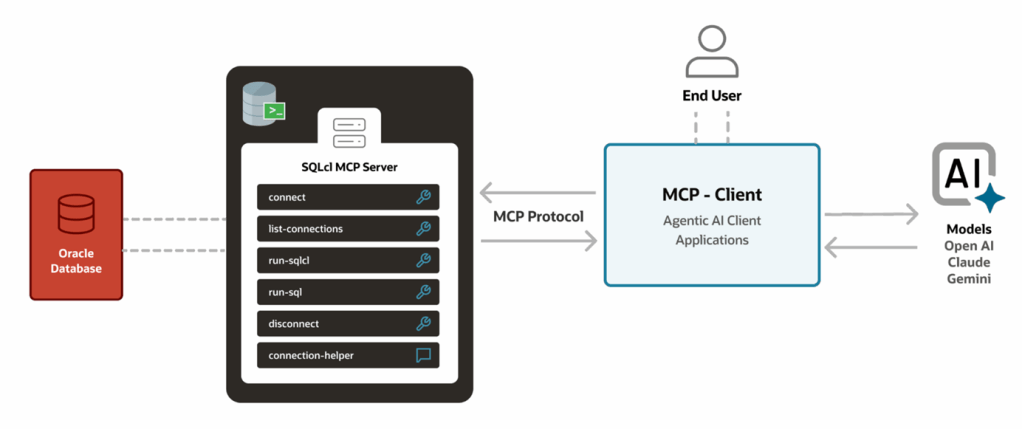
I tested building an MCP integration with Oracle 26ai Free Developer Edition.
Here’s the simplified setup:
Tools Needed
- Microsoft Visual Studio Code
- Install SQL Developer Extension for VS Code
- Enable Chat with SQL Developer
- Download Oracle Database 26ai Virtual Image for Windows
- Import into VirtualBox and switch NAT → Bridge Adapter to allow internal network access
- Install GitHub Copilot Chat (optional, helps with natural prompts)
- Configure DB connections inside SQL Developer on VS Code
- Start chatting and vibing 😄
- Always click “Allow Once” when executing AI suggestions

Optional:
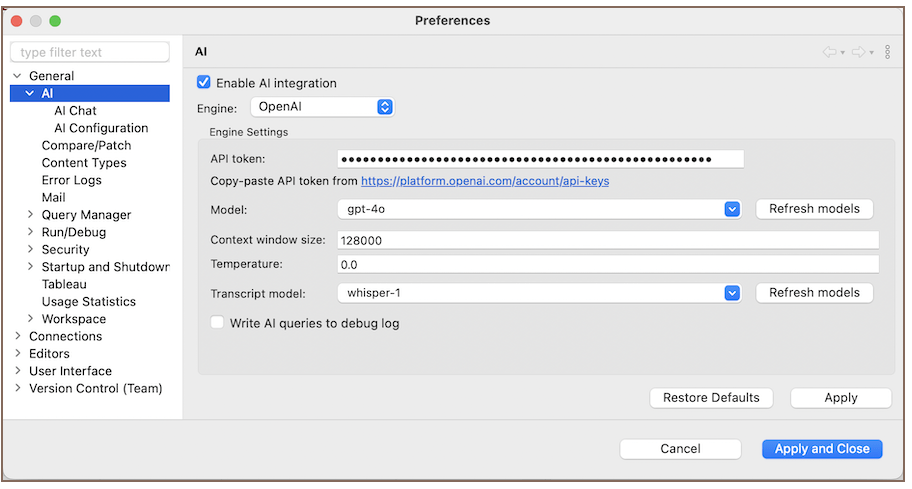
If you prefer GUI tools, Toad and DBeaver now include AI assistants — but their AI capabilities are limited to:
- SQL formatting & Query tuning assistance
They cannot train agents or operate workflows like MCP does.
 DBADEEDS
Leave a comment